- Stock: In Stock
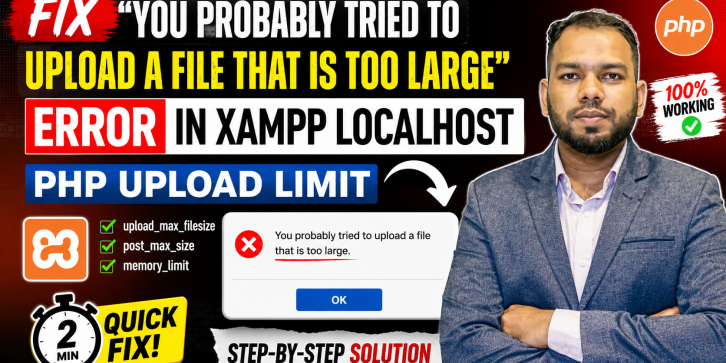
- Learn how to fix the common PHP file upload size limit error in XAMPP localhost. This tutorial explains how to increase upload limits by modifying php.ini settings such as upload_max_filesize, post_max_size, and memory_limit. Perfect for PHP, Laravel, OpenCart, CodeIgniter, and WordPress developers.
Are you getting the following error while uploading files in your local development environment?
"You Probably Tried to Upload a File That Is Too Large"
This issue usually occurs when PHP upload limits are set too low in your XAMPP configuration.
In this tutorial, you'll learn how to increase PHP file upload limits and fix upload-related issues by modifying the php.ini configuration file.
What You Will Learn
✔ How to locate the php.ini file in XAMPP
✔ How to increase upload_max_filesize
✔ How to increase post_max_size
✔ How to adjust memory_limit
✔ How to adjust max_execution_time
✔ How to restart Apache properly
✔ How to verify PHP configuration changes
✔ How to solve upload issues in Laravel, OpenCart, WordPress, and CodeIgniter
Who Is This Tutorial For?
- PHP Developers
- Laravel Developers
- OpenCart Developers
- CodeIgniter Developers
- WordPress Developers
- Students Learning Web Development
Technologies Covered
- PHP
- XAMPP
- Apache Server
- Laravel
- OpenCart
- CodeIgniter
- WordPress
Requirements
- XAMPP Installed
- Basic PHP Knowledge
- Local Development Environment
Benefits
After completing this tutorial, you will be able to:
- Upload larger files in localhost
- Configure PHP upload settings correctly
- Avoid common upload errors
- Improve your local development workflow