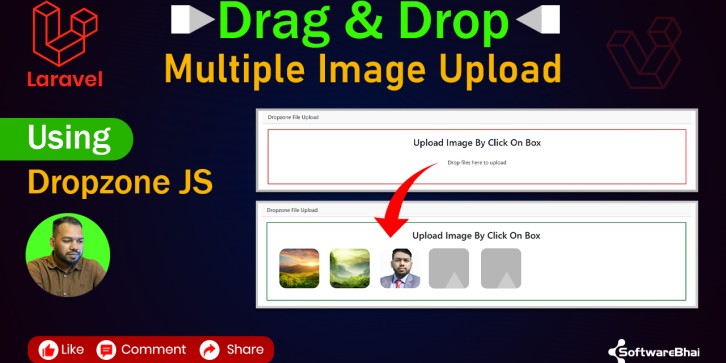
Laravel Dropzone.js Tutorial — Drag & Drop Multiple Image Upload in Laravel (Complete Guide 2025)
Looking for a clean and modern way to upload multiple images in your Laravel project?
In this full Laravel Dropzone.js tutorial, you’ll learn how to create a professional drag-and-drop multiple image upload system from scratch using Dropzone.js — one of the most popular JavaScript libraries for image uploads.
This tutorial is specially made for Laravel beginners and intermediate developers who want to enhance their projects with a dynamic and user-friendly image upload feature. We’ll go step by step through setup, backend configuration, frontend integration, and testing.
What You’ll Learn in This Video
✅ How to install and configure Dropzone.js in Laravel
✅ Add a drag & drop multiple file upload feature
✅ Create Laravel routes, controller, and Blade view for uploads
✅ Handle uploaded files and save images into the public or storage folder
✅ Implement CSRF protection for Laravel Dropzone uploads
✅ Display live upload previews dynamically on the page
✅ Test image uploads and verify file storage
Why Use Dropzone.js with Laravel?
Dropzone.js makes the file upload experience smooth and interactive. It allows users to drag and drop images into a drop area, preview them instantly, and upload multiple files at once — all without a page reload.
When combined with Laravel’s backend power, you get a fast, secure, and modern upload system suitable for:
Tools & Technologies Used
Step-by-Step Workflow
1️⃣ Install and set up a fresh Laravel project
2️⃣ Configure Dropzone.js and Bootstrap in Blade view
3️⃣ Create a controller to handle uploads
4️⃣ Use Laravel’s move() or store() methods to save images
5️⃣ Display preview after upload completion
6️⃣ Verify uploads and test the project